

When it comes to nutrition tracking, accuracy matters. That is why Cronometer’s food database is built around high-quality, verified nutrition data from sources like the NCCDB, USDA, and our own CRDB, also known as the CRON-O-Meter Community Database. The CRDB is reviewed by Cronometer’s in-house nutrition team to help ensure entries are as accurate and complete as possible.
Cronometer gives you four ways to log your food, so you can choose the method that works best for the moment. Whether you want speed, precision, convenience, or control, there is a logging tool to help.
To log food in the Cronometer mobile app, tap the + button at the bottom of your screen, then choose one of the following options:
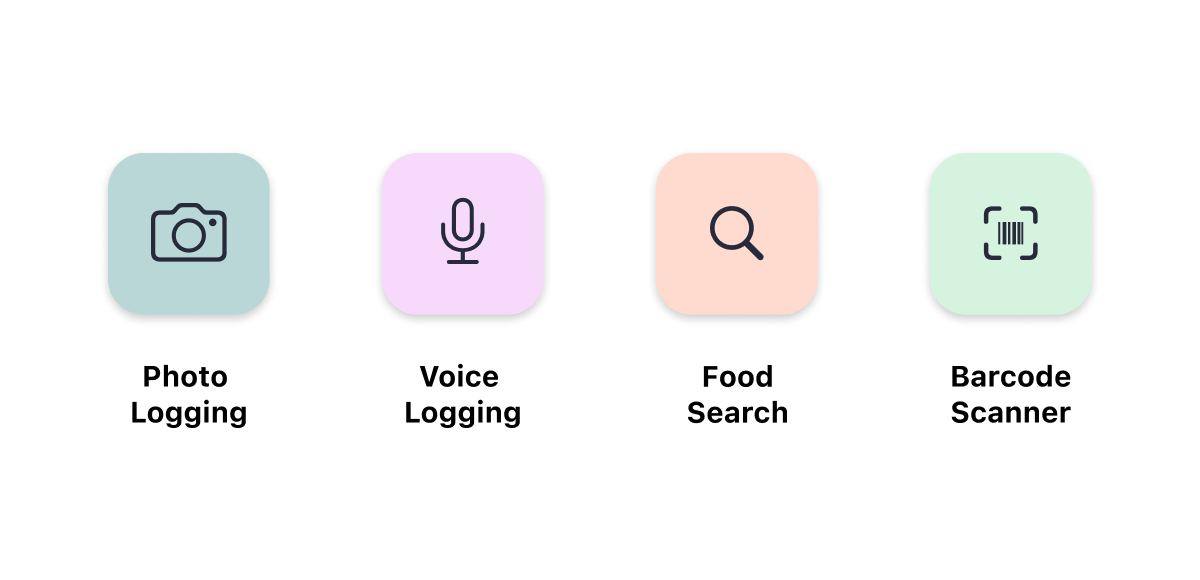
Photo Logging (Gold Feature)
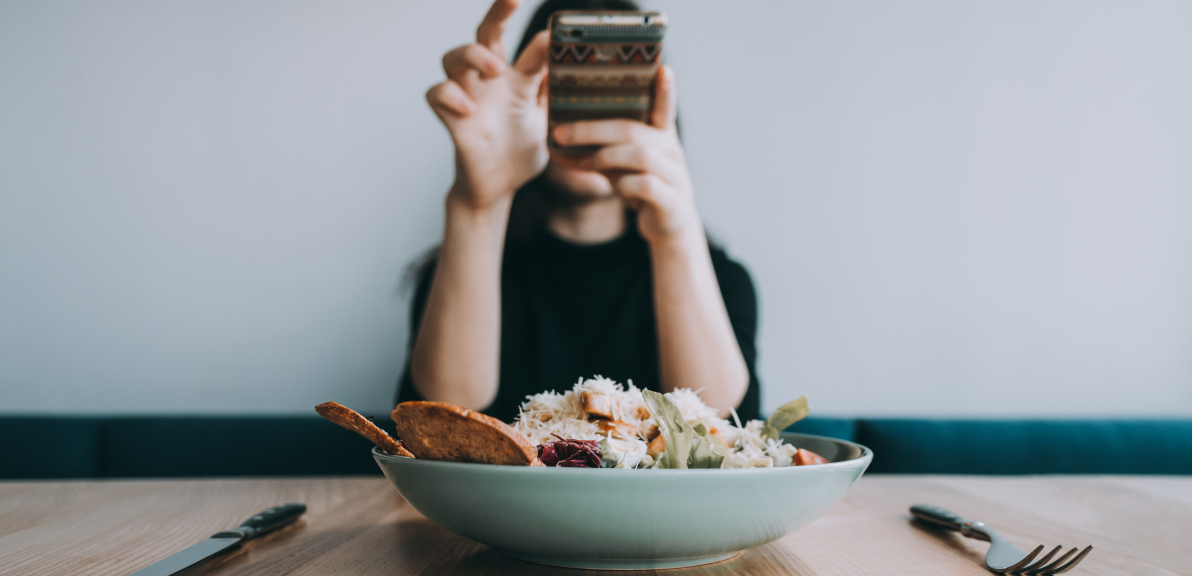
Photo Logging uses AI to analyze an image of your meal and match the foods in the photo to entries in Cronometer’s database. Simply take a picture of your meal, and Cronometer will suggest ingredients based on what it detects.
This is a great option when you want to log quickly, especially if you are eating a full meal with multiple ingredients. Instead of searching for every item manually, Photo Logging gives you a starting point that you can review and refine.
Because accuracy is central to Cronometer, Photo Logging is designed to be editable. You can adjust serving sizes, remove items, swap entries, and add anything that may be missing. Cronometer also offers ingredient suggestions, which can help identify common additions that may not be obvious in a photo, such as butter on toast or dressing on a salad.
When to use Photo Logging
Photo Logging is especially useful when you want to save time but still want control over your nutrition data. It is also helpful when you want to log later. For example, you can snap a photo of your dinner at a restaurant and review the suggested entries when you get home. The timestamp will update automatically, making it easier to keep your Diary organized.
Like any photo-based tool, Photo Logging works best when the foods in your meal are visible. A photo may not capture sauce under a burger bun, milk in coffee, oil used in cooking, or ingredients mixed into a casserole. For meals with hidden ingredients or precise recipes, it is best to review the suggestions carefully or use Food Search for more control.
To learn more about Photo Logging on Cronometer visit our blog here.

Voice Logging (Gold Feature)
Voice Logging lets you tell Cronometer what you ate, and Cronometer will match your spoken foods to entries in the database. You can log in a natural way, such as “I ate two eggs and a slice of toast,” the same way you might describe your meal to a friend.
This is a great option when you want to log quickly without typing or manually searching for each item. Voice Logging is especially useful for simple meals, snacks, or meals you can describe clearly, such as “Greek yogurt with blueberries and honey” or “chicken breast, rice, and broccoli.”
Because accuracy is central to Cronometer, Voice Logging is designed to be editable. You can adjust serving sizes, remove items, swap entries, and add anything that may be missing. This makes it easy to move quickly while still keeping your Diary accurate.
When to use Voice Logging
Voice Logging is especially useful when you want a fast, hands-light way to log your food. Voice Logging is a great fit when you are cooking, multitasking, or logging a meal that is easy to describe out loud. It is also helpful for reading out recipe or restaurant menu ingredients, so you can spend less time searching for each item individually.
Voice Logging works best when foods and serving sizes are spoken clearly. For more complex recipes, branded packaged foods, or meals where exact amounts matter, it is best to review the suggested entries carefully or use Food Search, Barcode Scanner or the Recipe Importer.
Voice Logging can also be used hands-free with Siri on iOS devices. To learn more about Voice Logging with Siri on Cronometer, visit our User Manual here.
To learn more about Voice Logging visit our blog here.

Food Search
To start a Food Search in the app, tap the Add Food button. From there, you can manually search for foods, compare entries, select the best match, and adjust serving sizes. Food Search gives you the most control over what you log, making it a great option when accuracy and precision matter most.
Food Search is especially useful for home-cooked meals, recipes, whole foods, and meals where you know the ingredients and amounts.
Because Cronometer’s database includes high-quality sources like the NCCDB, USDA, and CRDB, Food Search allows you to be intentional about the entries you choose. For example, you may prefer a generic lab-analyzed entry for a whole food, or you may want to use a specific branded entry for a packaged product.
When to use Food Search
Food Search is especially useful when you want to choose the exact food entry, database, serving size, and amount. It is one of the best options when you are tracking closely, building recipes, or logging foods where precision matters.
To narrow your results, tap the Food Search options button in the search bar. From there, you can sort or filter by database to help find the most appropriate entry. You can also enable Multi-Add, a powerful tool that lets you select multiple foods at once before adding them to your Diary. Learn more about Food Search options on this blog.
Food Search can take more time than other logging methods, especially when you are logging meals with many ingredients. When speed matters more than precision, Photo Logging, Voice Logging, or the Barcode Scanner can be a faster starting point.
To learn more about Food Search on Cronometer, visit our blog here.

Barcode Scanner
The Barcode Scanner is the fastest way to log packaged foods. Simply scan the barcode on a product, and Cronometer will pull up the matching food entry from the database.
This is a great option when you are logging branded foods, packaged snacks, protein bars, frozen meals, sauces, drinks, and other products with a barcode. It helps you find the exact product quickly without manually typing the name into Food Search. Its also a helpful tool to use while grocery shopping to see how a food would impact your nutrition intake.
If Cronometer does not already have the food in the database, you will be prompted to add it. You can take photos of the package, nutrition label, and ingredients list. Cronometer will help autofill the nutrition label information so you do not have to enter everything manually. From there, you can log the food to your Diary right away. Learn more about Autofill here.
When to use the Barcode Scanner
The Barcode Scanner is especially useful when you are logging packaged foods with a visible barcode. It is fast, convenient, and ideal for branded products.
If an item is not already in Cronometer’s database, your submission can help improve the experience for other users. Cronometer’s Nutrition Team reviews submitted foods, checks the nutrition information for accuracy, and adds approved entries to the CRDB so other users can access them too.
The Barcode Scanner is not the right tool for foods without barcodes, such as fresh produce, restaurant meals, homemade recipes, or bulk foods without packaging. For those foods, Food Search, Photo Logging, or Voice Logging may be a better fit.
To learn more about the Barcode Scanner on Cronometer, check out our blog here.

Which Logging Method Should You Use?
There is no single “best” way to log food in Cronometer. The best method depends on what you are eating, how much time you have, and how precise you want to be.
- Use Photo Logging when you want a quick visual starting point for a meal.
- Use Voice Logging when you want to speak your foods naturally and log with minimal typing.
- Use Food Search when you want the most control over each food entry.
- Use the Barcode Scanner when you are logging packaged or branded foods.
Many Cronometer users combine these methods throughout the day. You might scan a protein bar in the morning, use Food Search for a homemade lunch, take a photo of dinner at a restaurant, and use Voice Logging for a quick snack.
However you choose to log, Cronometer gives you the tools to track your nutrition with flexibility, accuracy, and confidence.


